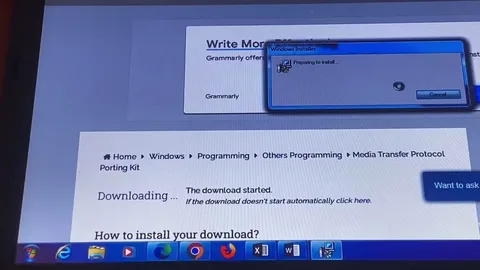
When your phone refuses to connect properly to a Windows PC, one of the most common reasons is a failure of the media transfer protocol. This protocol is responsible for allowing file transfer between your Android device and your computer. Without it working correctly, your PC may fail to detect your device, or it may only show it as a charging device instead of enabling file access.
The issue can be caused by outdated drivers, faulty USB cables, incorrect phone settings, or even Windows system glitches. Fortunately, fixing media transfer protocol problems is usually straightforward once you identify the root cause. In this guide, we will go through practical, step-by-step solutions to restore proper connectivity between your phone and Windows PC.
Understanding Media Transfer Protocol and Common Causes
The media transfer protocol (MTP) is a communication standard that allows devices like smartphones and cameras to transfer media files to a computer without requiring full device access. Windows relies on this protocol to recognize your phone as a media device rather than just a charging accessory.
When MTP stops working, it is usually due to driver corruption, missing updates, or compatibility issues between Windows and your device. Sometimes, even a simple system update or a change in USB configuration can break the connection. Understanding these causes is the first step in troubleshooting effectively.
Check USB Cable and Connection Mode
One of the simplest yet most overlooked reasons for media transfer protocol failure is a faulty or low-quality USB cable. Many charging cables do not support data transfer, which prevents Windows from detecting your device properly. Always use the original cable or a certified high-quality replacement.
After connecting your phone, ensure that the USB mode is set correctly. On most Android devices, you need to swipe down the notification panel and select “File Transfer (MTP)” instead of “Charging Only.” If this option is not selected, Windows will not activate the media transfer protocol, and file access will remain disabled.
Update or Reinstall MTP Drivers in Windows
Driver issues are one of the most common causes of media transfer protocol not working. Windows uses specific drivers to communicate with Android devices, and if these drivers are outdated or corrupted, the connection will fail.
To fix this, open Device Manager on your Windows PC and look for your connected device under “Portable Devices” or “Other Devices.” Right-click it and choose “Update driver.” If updating does not help, uninstall the device and reconnect it. Windows will automatically reinstall the correct MTP driver, often resolving the issue immediately.
Restart Windows Services and Enable Device Recognition
Sometimes the problem lies within Windows services that manage device connections. If the media transfer protocol is not functioning, restarting key services can help restore communication between your PC and phone.
Open the Services application and look for “Windows Portable Devices Enumerator Service.” Restart this service and set its startup type to automatic. Also, unplug and reconnect your device after restarting your computer. This refreshes system recognition and often fixes hidden connection errors.
Enable Developer Options and Adjust Phone Settings
On Android devices, advanced settings can significantly affect how media transfer protocol works. If developer options are enabled, incorrect configurations may block proper USB communication with Windows.
Go to your phone’s Settings, open Developer Options, and make sure “USB configuration” is set to “MTP (Media Transfer Protocol).” You can also try disabling and re-enabling USB debugging. Additionally, updating your phone’s system software can resolve compatibility issues that interfere with file transfer.
Conclusion
Fixing media transfer protocol issues on Windows may seem complicated at first, but most problems can be resolved with basic troubleshooting steps. From checking your USB cable and adjusting phone settings to updating drivers and restarting system services, each solution targets a specific cause of the issue.
By following the steps outlined in this guide, you can restore smooth file transfer between your Android device and Windows PC. Keeping your drivers updated and using reliable hardware will also help prevent future MTP-related problems. Once properly configured, the media transfer protocol ensures fast and stable data exchange, making file management between devices much easier and more efficient.